

Labels
Labels are tags used to organize Security Assets and Use Cases within a workspace. Each label has a name, a color, an optional description and one or more values that can be applied to assets.
TIP
Labels are scoped to a single workspace. Creating a label in one workspace does not make it available in another.
For example, a False Positive Rate label, of color red, could have the items Never, Rare, Occasional, and Frequent. A Security Asset or Use Case can then be tagged with one of those values to reflect if the asset is fine-tuned or would require more adjustments.
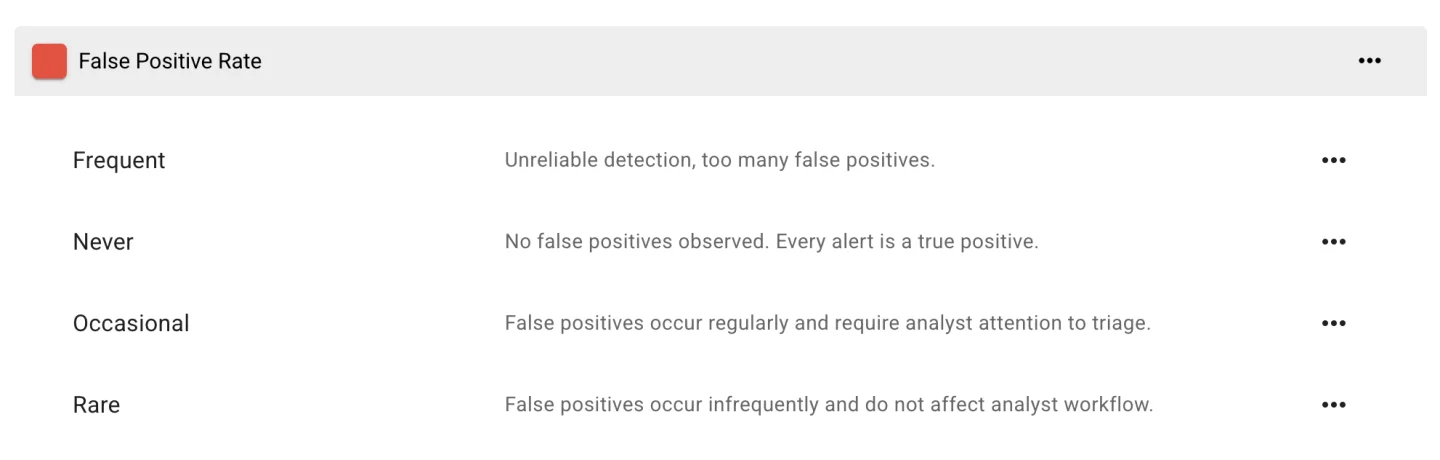
Create a label
- Open the workspace.
- Go to Settings > Labels.
- Click Create label.
- Enter a name and pick a color.
- Click Save.
Add items to a label
A label without items cannot be applied. After creating a label:
- Select the label.
- Click Add item.
- Enter the item value.
- Click Save.
Repeat for each value the label should support.
Edit a label
From Settings > Labels:
- Change the label name or color from the label detail view.
- Rename or remove items from the same view.
Renaming an item updates every Security Asset or Use Case already tagged with it.
Delete a label
- Go to Settings > Labels.
- Select the label.
- Click Delete.
Deleting a label removes it from every Security Asset and Use Case it was applied to. This operation cannot be undone.