

MITRE ATT&CK
The MITRE ATT&CK view shows the full ATT&CK Enterprise matrix annotated with the workspace coverage. It is where you explore how the workspace Security Assets and Use Cases map to tactics and techniques, and where you decide which techniques are relevant to your environment.
LogCraft bundles the MITRE ATT&CK library and updates it with new framework releases.
Reading the matrix
Tactics are laid out as columns in the standard ATT&CK Enterprise order. Each column lists its techniques as cells; a cell with sub-techniques can be expanded with the chevron on its right side.
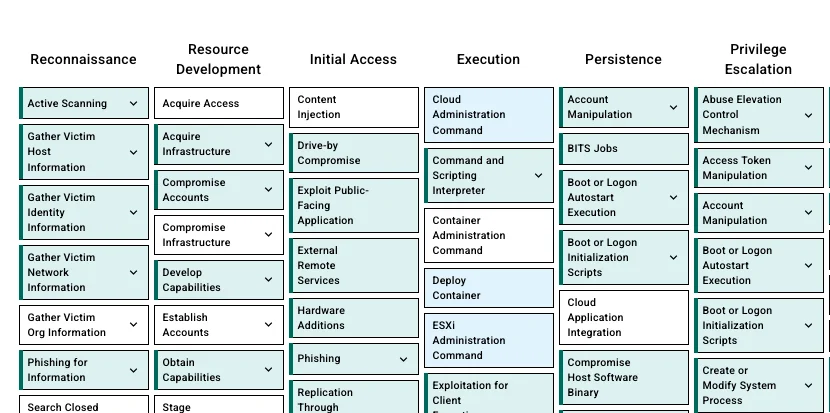
Each cell carries a color and an optional left border that summarize its status in the workspace:
- A thick left border means at least one Security Asset in the workspace maps to this technique or one of its sub-techniques.
- A teal background marks a covered technique: Security Asset exist, and the technique is either marked Cover or left Undecided.
- A blue background marks a roadmap technique: it is marked Cover but no Security Asset maps to it yet.
- A grey background marks a technique that is marked Ignore.
- No background means the technique is Undecided: no objective has been set yet.
Click a cell to open its detail drawer.
Set an objective on a technique
Objectives drive the Target Posture shown on the Security Posture view and the suggestions in the Detection Opportunities view.
- Click the technique (or sub-technique) cell to open the drawer.
- On the Your content tab, find the Objectives section.
- Pick one of:
- Cover: the technique is relevant to your environment and should be detected. It counts toward the target posture and appears as a gap until at least one Security Asset is mapped to it.
- Ignore: the technique is not relevant in your context. It is excluded from the target posture and from Detection Opportunities.
- Undecided: no decision yet. This is the default until your team pick Cover or Ignore.
The matrix and the posture views update as soon as the objective is saved.
Browse and link content from a technique
The Your content tab of the drawer also lists what the workspace already has on the technique:
- Use Cases mapped to the technique: click a name to open the Use Case.
- Security Assets mapped to the technique: click a name to open the Security Asset.
Mappings are created from the asset side, not from the matrix:
Once a mapping is saved, the matrix updates automatically.
Notes
The drawer includes a free-text Notes field for each technique. Use it to record context that is specific to your environment: the rationale for an Ignore decision, references to internal tickets, exceptions, or known gaps. Notes are scoped to the workspace and saved automatically.